
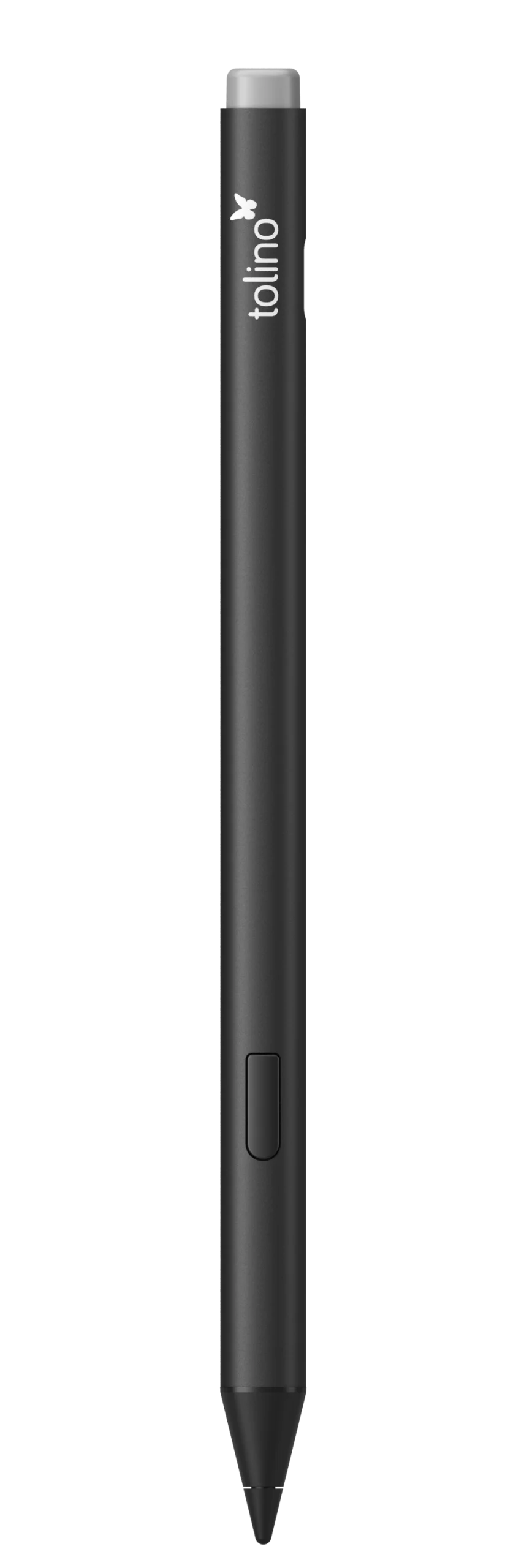
FAQ: tolino stylus
- Use gestures: Make use of gestures when editing your handwriting.
- Back up notes: Export your notes regularly to avoid losing any important information.
- Different types of notebooks: Use Basic Notebook for basic writing and Advanced Notebook when you wish to convert handwriting to text that you can edit at a later date.
- Briefly charge the tolino stylus by connecting the USB-C cable.
- Connect the cable to a computer or charger for 5 seconds.
- The charging indicator will light up orange while charging.
- Disconnect the cable from your tolino stylus.
- Connection: Connect the USB-C cable to the charging port of your tolino stylus.
- Battery indicator: The battery indicator will show the battery status:
- Orange: charging.
- White: fully charged.
- Flashing orange: battery low.
- Note: Please charge the stylus briefly before you use it for the first time. This will activate it (see point 4).
Go to " My Notebooks ", tap the menu icon (3 dots) below the note, and select " Delete ". Tap to confirm.
- Export: Tap "My Notebooks", select the menu icon (3 dots) below the note and tap "Export".
- Connect: Connectyour eReader to your computer using the USB-C cable.
- Save: Copy the note files from your eReader to the computer.
- Create a notebook: Go to My Notebooks, tap New, and choose the notebook type (Basic or Advanced Notebook).
Save and Export: Export notes from the menu to save them to your computer
- Writing and drawing: Use moderate pressure to create thick lines and light pressure to create thin lines.
- Highlight: Press and hold the highlighter button to highlight text while reading.
- Erase: Use the eraser tip to remove text or lines.
You can create notes in the following file formats:
- EPUB
- PDF (unprotected, without DRM)
- Delete text: Draw a line through the word or letter you wish to delete.
- Connect text: Drag a line from the bottom of the word to the top.
- Split text: Draw a line from the top of the letter to the bottom.
- Headings: Draw one line for a heading, two lines for a subheading.
- Label:Draw a circle around the word or phrase.
The tolino stylus is a stylus pen designed to write and draw on the screen of your tolino eReader. It imitates the feel of a real pen and offers additional features such as a highlighter, eraser, and a battery indicator.