New Onleihe Access on tolino eReaders
- Onleihe menu item is now available directly on the tolino
- The new login process makes signing in to Onleihe much faster
- Now it's even easier to borrow eBooks through Onleihe
Digital Library even easier to use
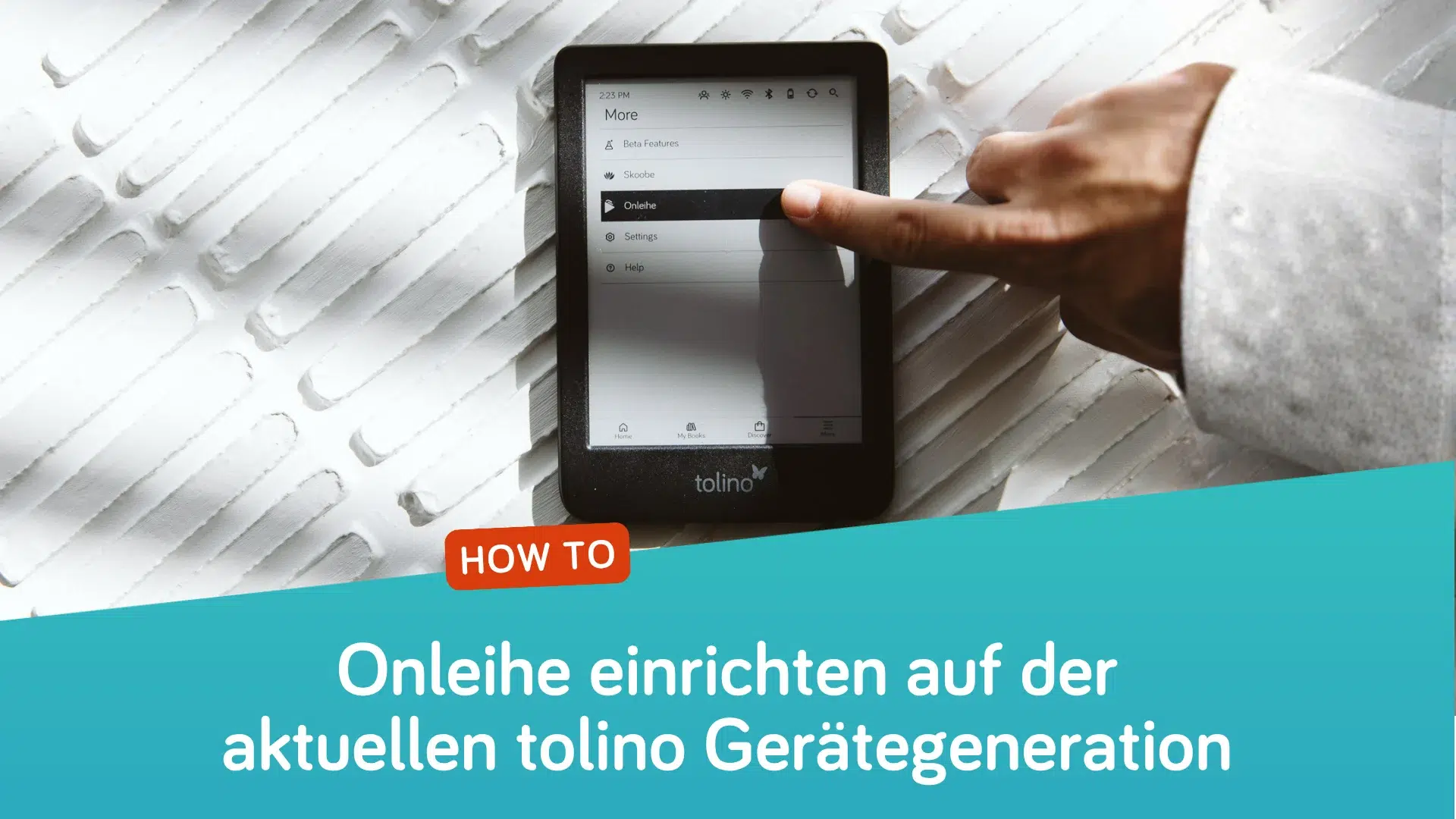
With the latest software update, borrowing and reading eBooks from public libraries on tolino eReaders has become much more convenient. A new menu item in the main menu provides direct access to Onleihe—without having to go through a web browser—and features a much more intuitive interface.
Accessible directly from the main menu
On the latest generation of tolino eReaders, a separate entry for Onleihe now appears under “More.” This leads to a redesigned home page that replaces the previous browser access and blends seamlessly into the familiar tolino user interface.
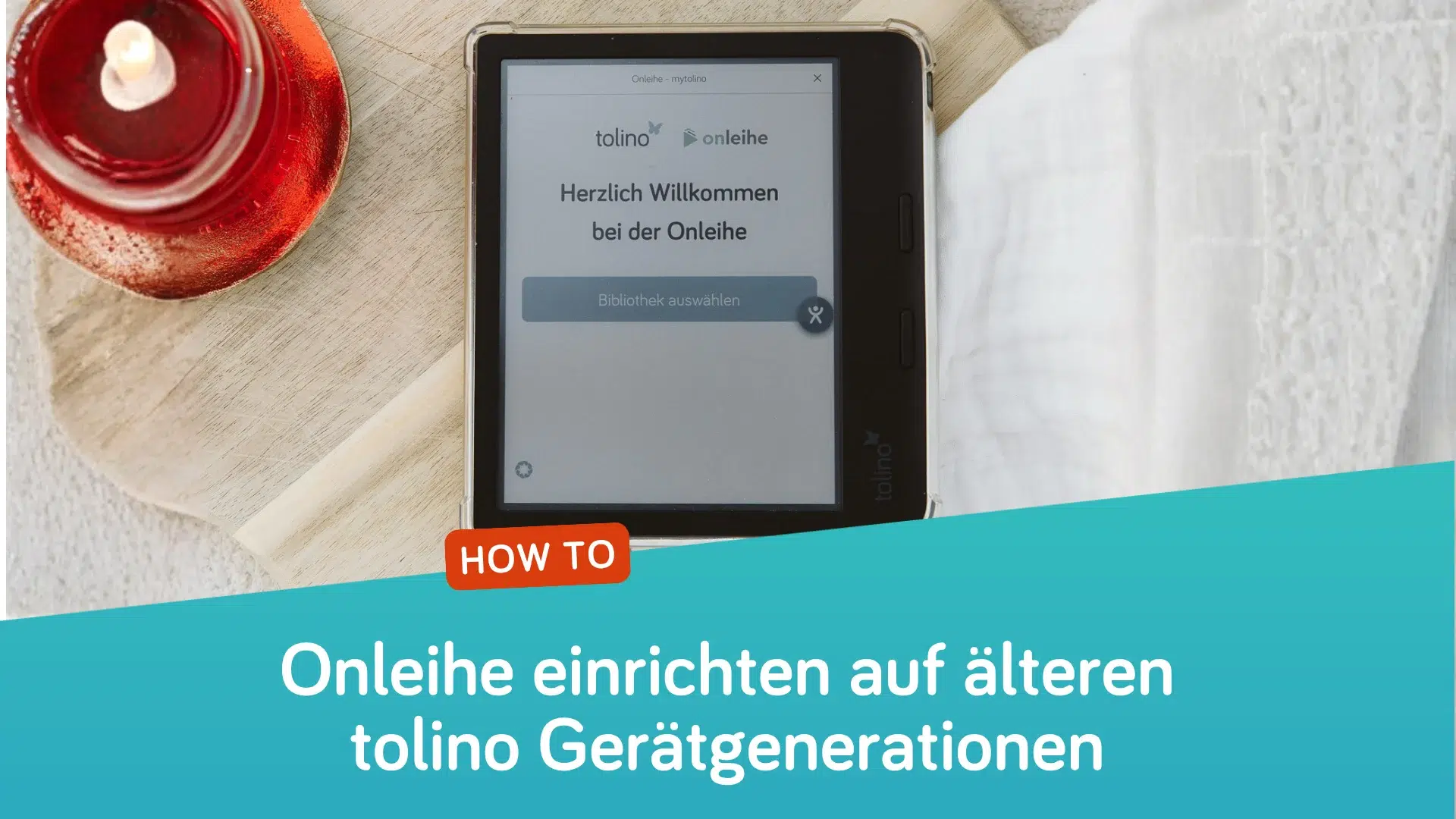
Tip: Older device models can also use this feature: On those devices, the Library Finder can be accessed via the URL https://mytolino.de/onleihe/ using the built-in web browser.

Find the right library quickly
Using “Select Library", the optimized search takes you directly to the right library. Just enter the location or name — and you’re done. You’ll then be taken directly to the login page of the selected library. After logging in, you can borrow eBooks as usual and download them directly to your tolino eReader. The most recently selected libraries are also saved to simplify the login process for future logins.
Frequently Asked Questions:
On which devices is the new Onleihe menu option available?
The new Onleihe portal is available on the latest generation of tolino devices:
- tolino vision color
- tolino shine (5th generation)
- tolino shine color
Can the simplified login process also be used on older tolino devices?
Older devices currently do not have a dedicated menu item for Onleihe.
However, you can still easily use Onleihe via the built-in web browser—including the new, simplified library search.
You can find step-by-step instructions for this in our FAQs.
Where can I find the new menu item on my tolino eReader?
The new Onleihe entry is located in the main menu under “More.”
If it isn’t displayed there, please check:
- whether you have a current-generation device (tolino shine 5th generation, tolino shine color, or tolino vision color)
- whether the latest software update is installed (the menu item is available starting with version 5.15.253009)
How does the new Onleihe setup work?
You can find detailed instructions on how to set it up and use it in our FAQs: “Setting up Onleihe on a tolino eReader.”
How can I delete or change the saved library?
If you want to delete or change the most recently used library, here’s how:
“More” → “Settings” → “Accounts” → “Browser Data” → “Clear.”
You can also find more information on this topic in our FAQs.
Can I also borrow audiobooks, e-newspapers, and e-magazines using my tolino eReader?
Currently, you can borrow eBooks directly on the tolino eReader.
Video Tutorial on borrowing e-books on the tolino